Troubleshoot the FP2
No connection or no COM port
Section titled “No connection or no COM port”Power off before unplugging the optional ASIAIR control cable, then restore fixed 12 V for the test. Check the manual button. For USB, use a known data cable directly to the computer, try a second port, and check whether the operating system lists a serial device. If the device appears there, close any application using its port and connect with the FP2 Control Panel. If that works, check the selected driver and port in your imaging software.
For Wi-Fi, open the browser control page first. The direct address works while connected to the module’s own network. After it joins your observatory network, use the module’s local hostname or its assigned IP. If the browser works but NINA cannot find the panel, check the Alpaca settings.
Windows 10 or later, Linux and macOS normally detect the USB serial device when you connect it. Try a USB 2.0 port if a USB 3.0 port fails. With the flap safely closed and USB still connected, reconnect DC power and check the list again. Contact support for Windows 7 or earlier. Advanced USB troubleshooting
Flap stuck, falls back, or reports the wrong position
Section titled “Flap stuck, falls back, or reports the wrong position”Stop commanding the motor and look at the flap. Check for a pinched cable, a raised magnet, a shifted insert, or a lid catching the rim when the clamp is tight. Confirm the mounting direction for your model. If it moves freely, check the main supply under load. A variable or current-limited port can light the electronics while supplying too little power for motion.
Test with the manual button, then with the Control Panel. If the position is still wrong, run range calibration. For a loose magnet, broken part, or repeated binding, send a photo or video before changing motor settings.
Flat light flashes at startup
Section titled “Flat light flashes at startup”
If the flat light flashes at startup on an illuminated motorized panel and the flap will not open or close normally, check the fixed DC supply and clear the flap’s path. A factory reset clears the learned travel range. Run range calibration to teach the panel the end positions again. For a flashing light on the Wi-Fi module, see module LED patterns.
Run range calibration
Section titled “Run range calibration”Park the telescope, clear the flap’s travel and start with the cover closed. In Control Panel 2, choose Device → Advanced → Calibration → Automatic calibration. After the cycle, test one open and close. A factory reset on a motorized panel clears its calibration. Illustrated calibration and manual-button procedure
ASIAIR ignores commands
Section titled “ASIAIR ignores commands”For the cable, follow the plug and slider test. Check which cable mode is selected before interpreting 5% or switching the output off. For Wi-Fi Plan Mode, verify the selected ASIAIR, automation toggle, frame types and First Delay in the worked Plan example.
Flats are too bright, dark, or uneven
Section titled “Flats are too bright, dark, or uneven”With the flap closed, take one flat at a fixed gain, filter and exposure. Change only the brightness and compare the histograms. If using the ASIAIR cable, keep the main supply steady and adjust the control output. If your software rounds small values to percentages, try a lower native step in the Control Panel.
For bands or uneven illumination, record the exposure, brightness, gain, filter, and software. Compare two raw flats at the same settings. If the pattern persists, send representative frames and a photo of the illuminated panel.
Updates and recovery
Section titled “Updates and recovery”Keep the panel on stable DC power. If an update fails, record the error and any versions shown. Choose the procedure for the device you can still reach.
| What you see | What to do |
|---|---|
| The panel still connects normally | Open Device → Firmware update → Check for updates. Control Panel can download the package. For an offline installation, choose a local .dsd file. Review the boards to update and keep power connected through verification. Firmware update guide |
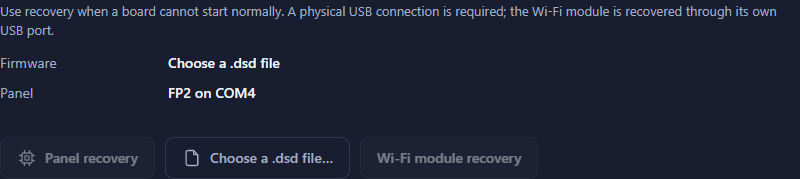
| A USB drive named RPI-RP2 appears | The panel is in update mode. Open its update-mode card under Devices → Local devices in desktop Control Panel. Under Device → Support → Recovery, choose the signed .dsd file, select Panel recovery and confirm Start recovery. The drive disappears as the panel restarts. Check that its serial port returns. If neither the drive nor a serial port appears, follow the USB detection checks. |
| The Wi-Fi module itself needs firmware recovery | Keep the panel powered and connect the computer to the module’s own USB port. In desktop Control Panel, open Device → Support → Recovery, choose the combined .dsd file, select Wi-Fi module recovery and choose the module’s USB port. Confirm Start recovery and keep USB and DC connected until it finishes. Power off the panel first if you need to fit or remove the module at the accessory jack. |
Download the signed v2.0.0 recovery package
Contact support
Section titled “Contact support”Send your panel model or body marking, telescope, firmware and software versions, and your connection method. Include what the manual button did and the results of the first failed test. For a mechanical issue, add a side view of the ring and a short video in the normal park position.
While the fault is present, choose Device → Support → Download support information in Control Panel 2 or the Wi-Fi web interface. For an ASIAIR cable problem, leave the cable plugged in and note the control output percentage. Email the file to Deep Sky Dad support.
Warranty and returns
Section titled “Warranty and returns”Deep Sky Dad provides a two-year manufacturer’s warranty and replaces malfunctioning units covered by it free of charge. The warranty excludes faults caused by incorrect use, including an unsuitable power supply, and physical damage. For a repair or replacement return, the customer pays shipping to Deep Sky Dad. If you purchased from a dealer, contact that dealer for service. For a direct purchase, contact Deep Sky Dad before sending the panel. Contact Deep Sky Dad